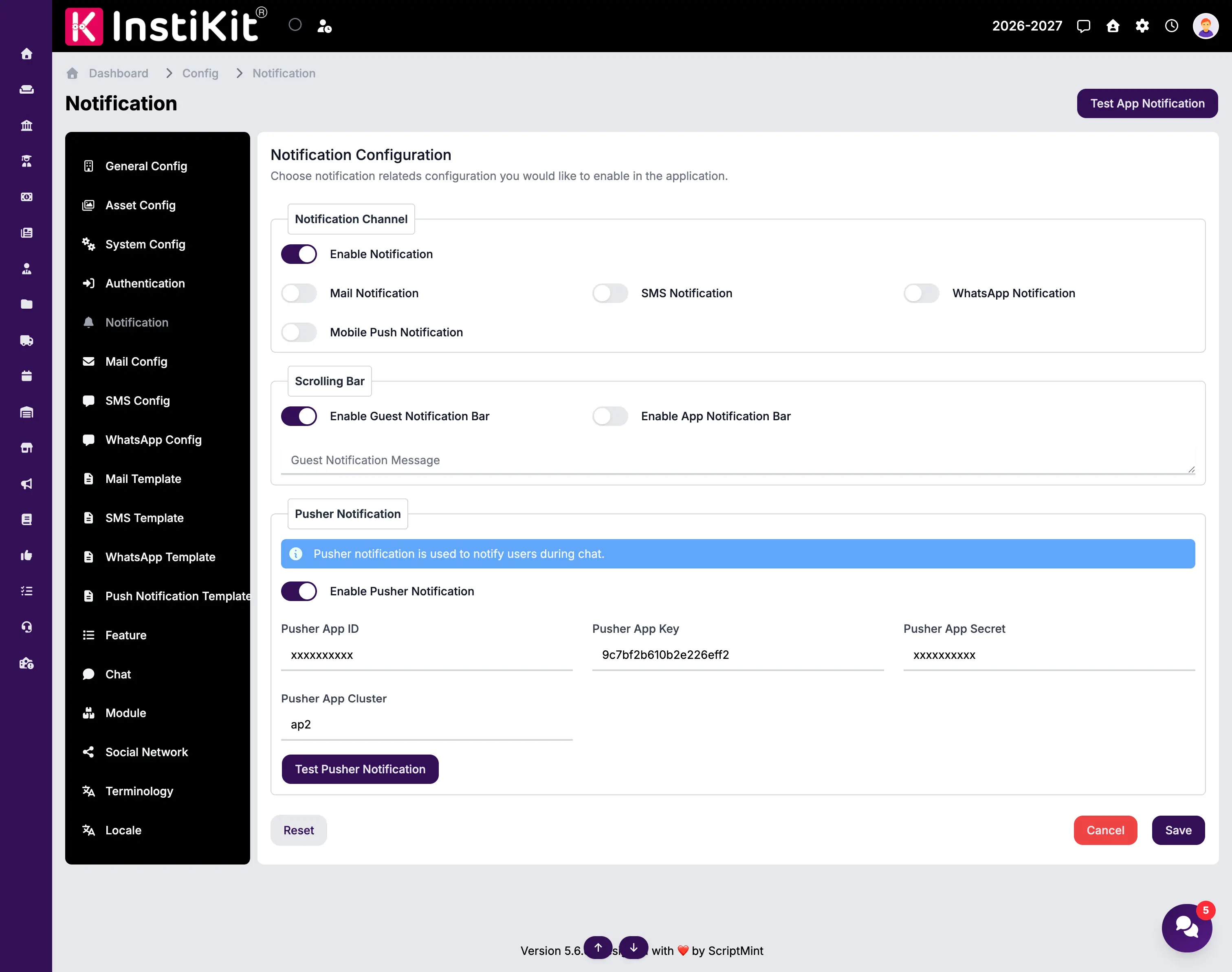
The Notification Configuration page allows you to control how notifications are delivered throughout InstiKit.
Notifications can be sent through multiple channels such as email, SMS, WhatsApp, mobile push notifications, or displayed inside the application itself.
Important
You only need to configure this section if your organization intends to send notifications to users.
If notifications are not required, you can safely leave the default configuration unchanged.
Notification Channels
Notification channels determine how messages are delivered to users.
Enable Notification
This is the master switch for the notification system.
When enabled, additional notification channels become available for configuration.
If disabled, no notifications will be sent through any channel.
Mail Notification
Enable this option to send notifications through email.
Before enabling this option, configure your email provider under Mail Configuration.
Typical use cases include:
- Fee receipts
- Password reset emails
- Exam notifications
- Admission confirmations
- General announcements
SMS Notification
Enable this option to send notifications through SMS.
Before enabling this feature, configure an SMS gateway under SMS Configuration.
Common use cases include:
- Attendance alerts
- Fee reminders
- OTP verification
- Emergency announcements
WhatsApp Notification
Enable this option to send notifications through WhatsApp.
Before enabling this option, configure a supported WhatsApp Business API provider under WhatsApp Configuration.
This channel is useful for delivering rich notifications directly to parents, students, and staff.
Mobile Push Notification
Enable this option to send push notifications to the InstiKit mobile application.
Before using this feature:
- Configure Mobile Push Notifications.
- Register your mobile application.
- Configure the required mobile application identifier.
Without a valid mobile application identifier, push notifications cannot be delivered to installed mobile applications.
Note
If Mobile Push Notifications are disabled or not configured, notifications are still stored inside InstiKit and users can view them from the notification menu in the application header.
Important
Not every event in InstiKit automatically sends notifications.
Notifications are sent only for events that have built-in templates.
If you need to send notifications for a workflow or event that is not currently supported by InstiKit, it will require a customization.
Examples include:
- Custom admission workflows
- Organization-specific approval processes
- Third-party module events
- Custom reports or generated documents
- Any other event that does not have a predefined notification template
Please contact the InstiKit support team if you require notifications for additional events.
Announcement Bar
The announcement bar displays important messages across the application.
It appears as a scrolling banner above the application header.
This feature is useful for broadcasting announcements without sending notifications individually.
Examples include:
- School holidays
- Emergency notices
- Admission announcements
- Maintenance schedules
- Upcoming events
Enable Guest Notification Bar
Display the scrolling announcement bar on guest pages before users log in.
This is useful for sharing information with visitors and prospective students.
Enable App Notification Bar
Display the scrolling announcement bar inside the application after users log in.
This is useful for notifying students, parents, teachers, and staff about important updates.
Notification Message
Enter the announcement message that should appear in the scrolling bar.
You can update this message at any time without affecting other notification settings.
Pusher Notification
InstiKit supports Pusher for real-time WebSocket communication.
This configuration is optional.
It is primarily used by the built-in Chat module to instantly deliver messages without requiring users to refresh the page.
If you do not use real-time chat, this section can be left unconfigured.
Enable Pusher Notification
Enable WebSocket communication using Pusher.
Once enabled, enter the credentials provided by your Pusher account.
Pusher App ID
Enter the App ID generated by your Pusher application.
Pusher App Key
Enter the App Key provided by Pusher.
This key is used by client applications to establish secure connections.
Pusher App Secret
Enter the App Secret generated by Pusher.
Keep this value confidential and never expose it publicly.
Pusher App Cluster
Specify the cluster where your Pusher application is hosted.
Examples include:
- ap2
- ap1
- eu
- us2
Choose the cluster assigned to your Pusher application.
Test Pusher Notification
After entering your credentials, click Test Pusher Notification to verify that the connection has been configured correctly.
A successful test confirms that real-time notifications are working properly.
Recommended Configuration
For most schools, the following configuration is recommended:
| Setting | Recommendation |
|---|---|
| Enable Notification | Enabled |
| Mail Notification | Optional |
| SMS Notification | Optional |
| WhatsApp Notification | Optional |
| Mobile Push Notification | Recommended if using the mobile app |
| Guest Notification Bar | Optional |
| App Notification Bar | Recommended |
| Pusher Notification | Optional (only if using real-time chat) |
Saving Changes
After updating the notification settings, click Save to apply the changes.
If you configure new notification channels, we recommend sending a test notification before using them in production to ensure everything is working correctly.