The Asset Configuration page allows you to customize the appearance and branding of your InstiKit installation.
All uploaded assets are used throughout the application, including the login screen, dashboard, website, emails, mobile applications, Progressive Web App (PWA), and browser tabs where applicable.
Uploading your organization's branding assets helps provide a consistent experience for students, parents, teachers, and staff.
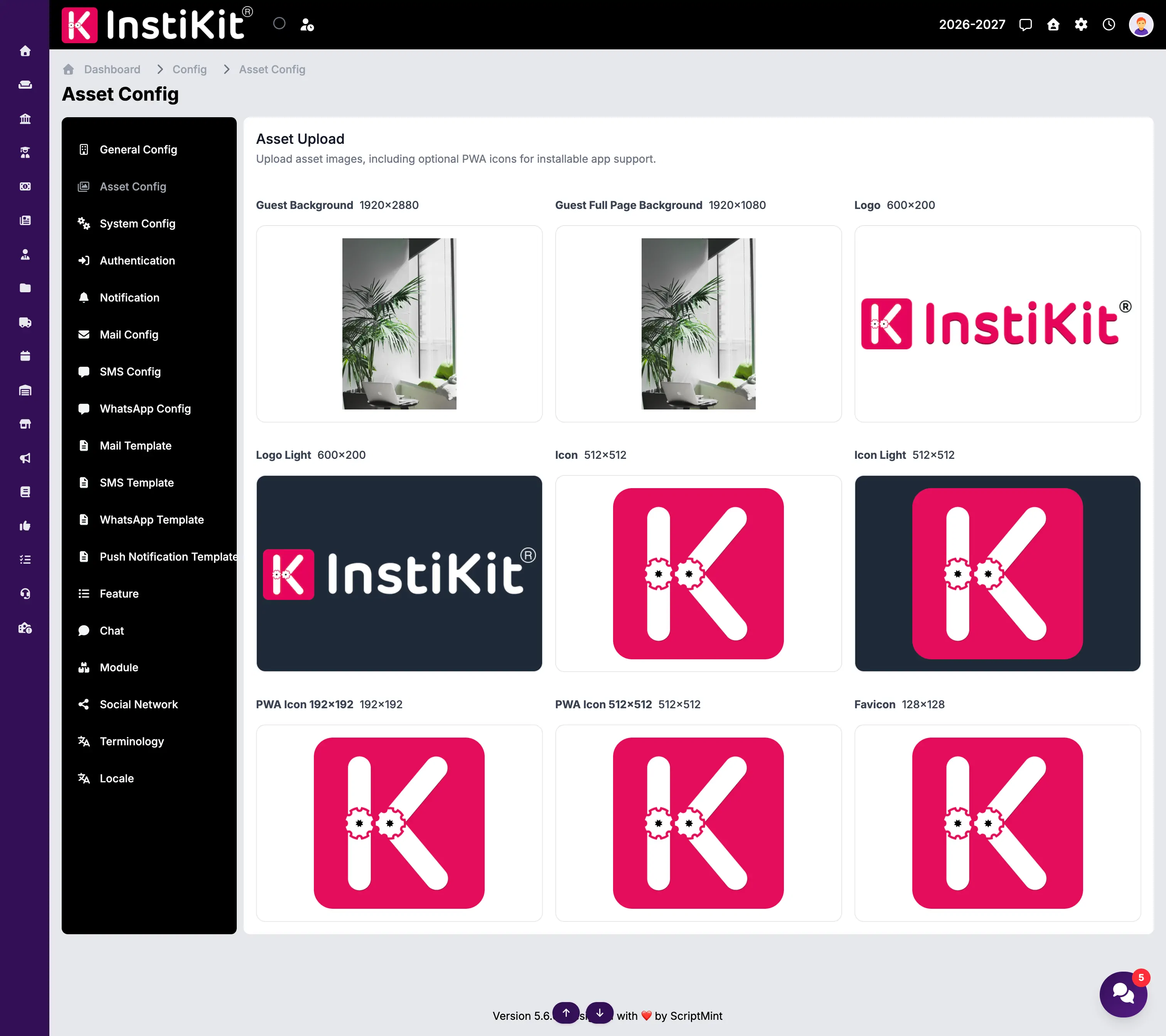
Recommended
For the best visual quality, upload images that match the recommended dimensions shown on the page. Using images with different aspect ratios may result in cropping or scaling.
Guest Background
Recommended Size: 1920 × 2880
This image is displayed as the background on guest-facing pages such as the login page and other public screens.
Choose a high-quality image that represents your organization while ensuring that text remains easy to read.
Guest Full Page Background
Recommended Size: 1920 × 1080
This background is used on full-width guest pages where a landscape image provides a better appearance.
A clean and uncluttered image works best.
Logo
Recommended Size: 600 × 200
Upload your organization's primary logo.
This logo is displayed throughout the application, including:
- Dashboard
- Navigation bar
- Reports
- Certificates
- Printed documents
- Website (where applicable)
Use a transparent PNG for the best results.
Light Logo
Recommended Size: 600 × 200
Upload a version of your logo that is optimized for dark backgrounds.
This logo is automatically used wherever the interface requires a light-colored logo to improve visibility.
Icon
Recommended Size: 512 × 512
Upload the primary application icon.
This icon is commonly used in:
- Mobile applications
- Application launcher
- Website
- Various user interface elements
A square PNG with a transparent background is recommended.
Light Icon
Recommended Size: 512 × 512
Upload a light version of your application icon.
This icon is displayed in places where the standard icon may not be clearly visible against a dark background.
PWA Icon (192 × 192)
Recommended Size: 192 × 192
This icon is used when users install your website as a Progressive Web App (PWA) on supported devices.
It should be clear and easily recognizable, even at smaller sizes.
PWA Icon (512 × 512)
Recommended Size: 512 × 512
This high-resolution icon is also required for Progressive Web App installation.
Modern browsers use this icon during installation and on supported operating systems.
Favicon
Recommended Size: 128 × 128
The favicon is the small icon displayed in:
- Browser tabs
- Browser bookmarks
- Browser history
- Desktop shortcuts
A simple square logo generally produces the best results.
Image Recommendations
For the best appearance throughout the application:
- Use high-resolution images.
- Upload PNG images whenever possible.
- Use transparent backgrounds for logos and icons.
- Keep important content centered to avoid cropping.
- Avoid adding unnecessary text inside logos or icons.
Saving Changes
After uploading or replacing any assets, click Save to apply the changes.
Some assets, such as favicons and PWA icons, may be cached by your browser. If the updated image does not appear immediately, clear your browser cache or perform a hard refresh.